 Cryptocom
Cryptocom App passkey access after changing phones
Last updated ·
Cryptocom App passkeys can verify sign-in on a replacement phone when its password manager can access your saved credential. Passkeys saved in iCloud Keychain or Google Password Manager need the matching provider account and access to encrypted credentials. A device holding your passkey or a registered hardware security key can provide a separate authentication route.
The App account, credential store, and screen lock
Your registered email address or phone number identifies your App account; the credential store supplies the passkey used to authenticate it. At sign-in, the App asks for your registered email address or phone number. Your Apple or Google account has a separate role: it provides access to the password manager holding your synced credential.
A passkey uses a cryptographic key pair. The service stores the public key, while your credential provider or security key protects the private key. During authentication, the private key signs a challenge the service can verify. For a passkey stored on your phone, its screen lock authorizes use of the credential. The App receives proof of authentication without receiving your fingerprint or facial scan. On iOS, Face ID, Touch ID, or the device passcode can approve a passkey request. Android uses the configured face scan, fingerprint, PIN, or pattern. The App passcode remains separate from the phone's screen lock.
What lets an existing passkey work on a new phone?
An existing passkey works when the replacement phone can access the same registered credential and complete the required device authentication. The App supports passkeys on iOS 16 or later and Android 9 or later. Installing the App alone does not put that credential on the phone.
Synchronization connects the saved credential to devices using the same password manager account. Access can also require approval of the new device or recovery of the manager's encrypted data. These requirements belong to the credential provider, separately from identifying your existing App account.
In this hypothetical phone change, your existing App passkey resides in a password manager which syncs credentials. Assume the replacement uses the same provider account, has completed any required recovery approval, and can unlock the saved passkey. You select Log in to existing account and enter your registered email address or phone number. When the App requests the credential, the manager supplies it on the replacement phone. Approving the request with the phone's configured authentication lets the App verify the passkey and open your existing account.
If the passkey instead resides only on an external security key, cloud restoration leaves it on that key. Using that passkey requires the physical key. If it is unavailable, use another registered credential or a verification method the App offers for your account.
iCloud Keychain depends on device approval and sync
An iCloud-saved passkey needs the same Apple Account and access to iCloud Keychain on the replacement iPhone. Apple Account sign-in and Keychain approval can involve different prompts. Two-factor authentication protects the Apple Account, and the new device may need approval using another device or an earlier device passcode.
In iPhone Settings, the relevant control is under your name, iCloud, and Passwords. Earlier software may label it Passwords and Keychain. The sync control enables the phone to receive saved credentials. Signing into the right Apple Account while leaving Keychain sync disabled does not establish the same access. iCloud Keychain protects synced passkeys with end-to-end encryption. When sync is off, credentials can remain stored locally on a device. Changes elsewhere will not necessarily reach that local copy, so the old phone displaying a passkey does not prove the replacement has received it.
Google Password Manager needs the matching account and screen lock
Google Password Manager makes synced passkeys available on supported devices signed into the same Google Account. On Android, a screen lock is required to store and use these credentials. A replacement phone signed into another Google Account will not acquire the original account's saved passkeys through that account. The manager's passkey list helps distinguish a missing credential from a credential the phone cannot yet unlock. Android settings or Google Password Manager provide access to saved passkeys. Restoring them after losing an Android device can require that device's security PIN, pattern, or password.
Keep the old device's screen-lock information available during the move. That recovery information serves a different purpose from the App passcode.
Can the old phone approve a sign-in on the replacement?
Yes, the App supports using a passkey from another device when that device still holds a usable credential. Select the option to use a passkey from another device. Before scanning its QR code, enable Bluetooth and keep both devices nearby. Use the device holding the passkey to scan the code and approve authentication. This option can help when the credential is unavailable locally on the replacement.
Cross-device authentication uses the other device's passkey without copying it to the device requesting access. The standard QR-based flow uses Bluetooth to check physical proximity. Follow the devices' connection prompts. The App verifies the passkey response before signing you in on the requesting device; it does not establish synchronization between different password managers.
An iCloud credential does not automatically become a Google Password Manager credential simply because the replacement runs Android. When another-device authentication is available, the old phone can provide the credential without first transferring it between those managers. If your existing credential provider supports the replacement platform, its own synchronization can offer another route.
A hardware security key keeps the credential outside cloud sync
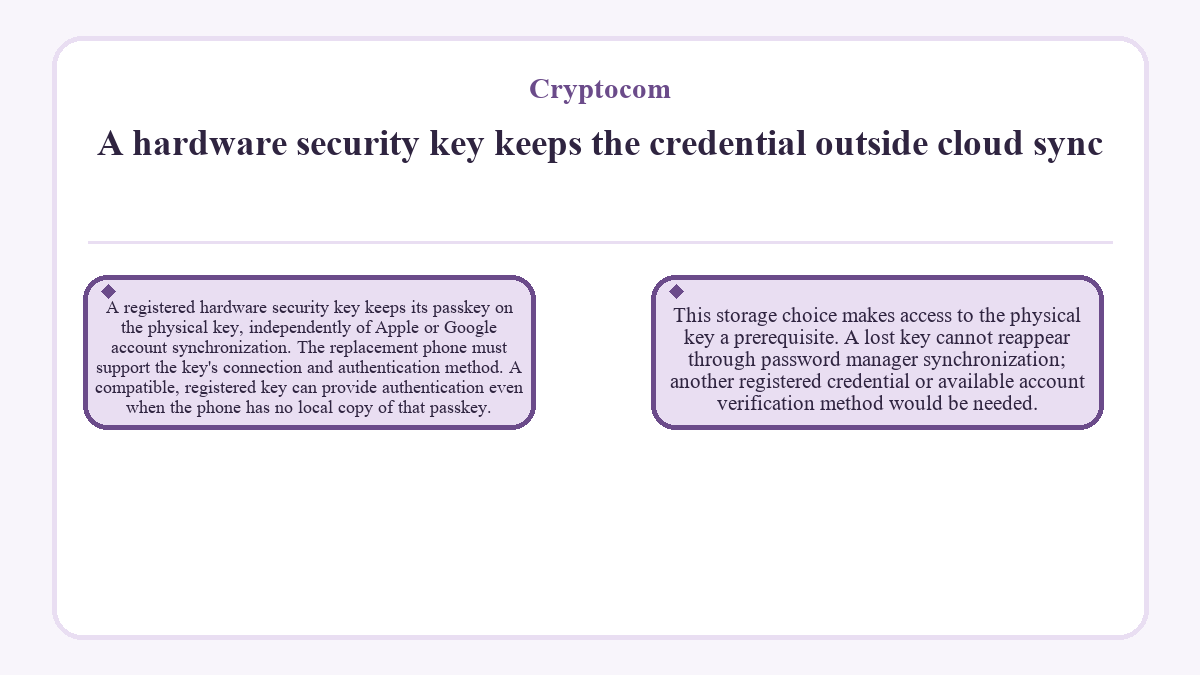
A registered hardware security key keeps its passkey on the physical key, independently of Apple or Google account synchronization. The replacement phone must support the key's connection and authentication method. A compatible, registered key can provide authentication even when the phone has no local copy of that passkey. This storage choice makes access to the physical key a prerequisite. A lost key cannot reappear through password manager synchronization; another registered credential or available account verification method would be needed.
Which verification options remain when a passkey is unavailable?
The App offers alternative verification methods through Verification Options after you dismiss the passkey prompt. The choices shown determine the available route for your account. A missing credential and a credential provider awaiting device approval require different attention, even though both can prevent passkey authentication.
For accounts without a passkey, login uses email verification, an SMS code, and the App passcode. Entering the registered email address starts with email verification; entering the registered phone number starts with SMS verification. Both routes require the remaining checks before access.
Email access and control of the registered phone number therefore matter when the login route uses those checks. Replacing the handset does not itself update the contact details registered with the App. A new phone number can require the account's phone-number reset process.
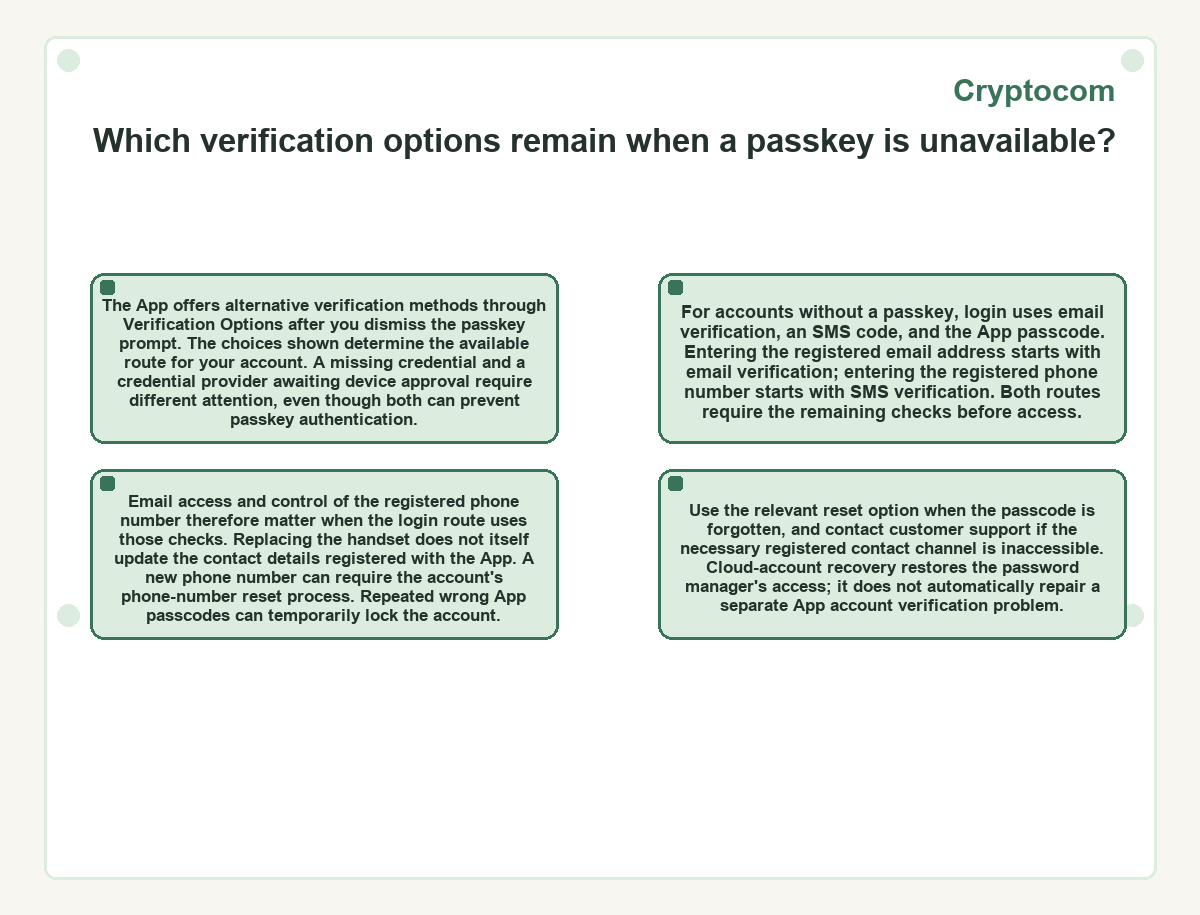
Repeated wrong App passcodes can temporarily lock the account. Use the relevant reset option when the passcode is forgotten, and contact customer support if the necessary registered contact channel is inaccessible. Cloud-account recovery restores the password manager's access; it does not automatically repair a separate App account verification problem.
Retiring the old phone without revoking a shared passkey
Removing a passkey from the App changes an account credential, while signing out and erasing a phone removes device access. Confirm usable access on the replacement before retiring a phone which still supplies authentication. For an iPhone being sold or transferred, account sign-out and the device's erase process remove its personal information without deleting your content from iCloud.
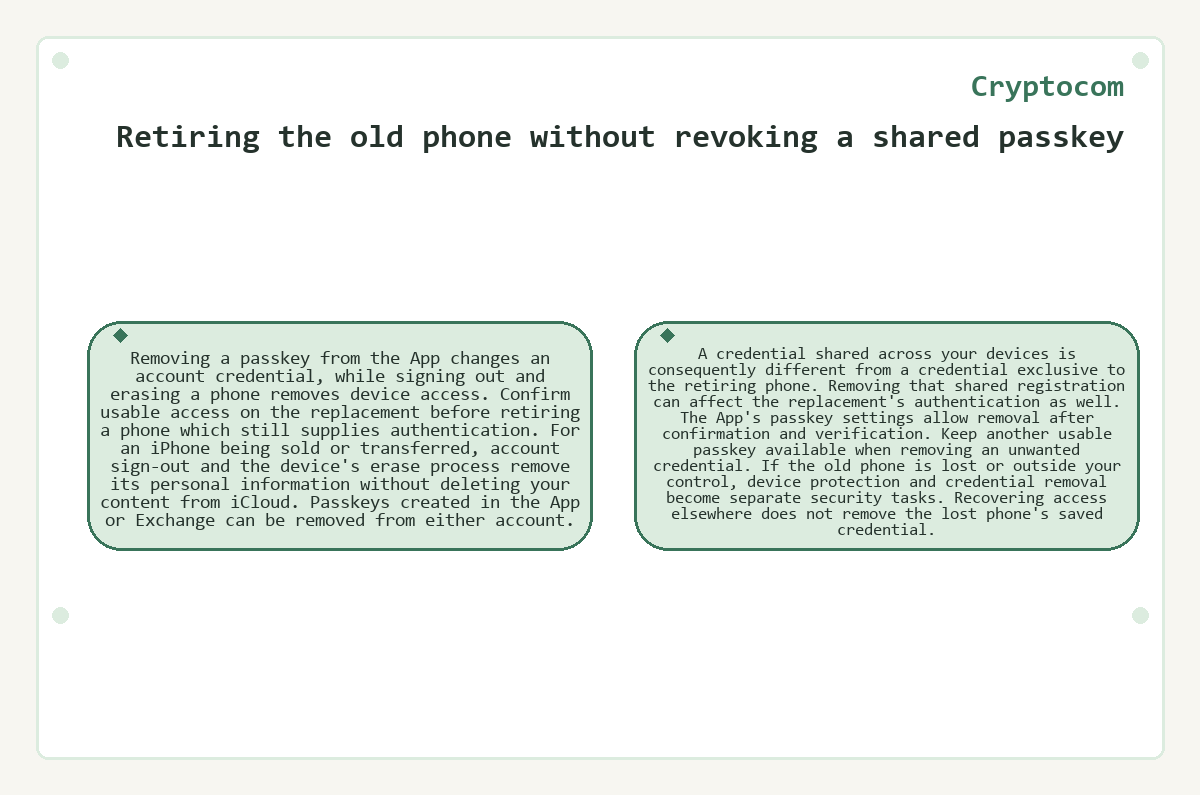
Passkeys created in the App or Exchange can be removed from either account. A credential shared across your devices is consequently different from a credential exclusive to the retiring phone. Removing that shared registration can affect the replacement's authentication as well.
The App's passkey settings allow removal after confirmation and verification. Keep another usable passkey available when removing an unwanted credential. If the old phone is lost or outside your control, device protection and credential removal become separate security tasks. Recovering access elsewhere does not remove the lost phone's saved credential.
Cryptocom - your questions answered
How many passkeys can the App and Exchange share?
The App and Exchange support a combined maximum of 10 passkeys across your accounts. Once that shared limit is reached, you must remove a passkey before adding another. The allowance is not a separate set of 10 credentials for each product.
Where can I rename a passkey after changing phones?
You can rename a passkey from its menu in the App's passkey settings. Tap the three dots beside the credential, choose Edit Passkey Name, enter the name, and select Save Name. Renaming leaves the credential registered.
Does restoring a passkey also restore my authenticator codes?
Restoring a passkey does not restore the separate secret used by an authenticator app. The App offers Reset 2FA under Security and 2-Factor Authentication, with passkey verification when available. A reset requires setting up the new authenticator entry, removing the previous key from your authenticator app, and immediately re-enabling 2FA. It also affects Exchange two-factor authentication, where applicable, so its 2FA must be set up again.
What happens if I forget my App passcode during the move?
The App's Forgot Passcode option supports verification with an existing passkey. After verification, the reset process sends an email whose Log In Now button leads to setting and confirming a new passcode. Without a passkey, you must verify by SMS and enter your date of birth when your balance is US$1,000 or less. Selected users having trouble with those checks can choose Change Verification Method. A higher balance requires identity verification in the App.
Why should I open the newest login email on my replacement phone?
Email verification requires the link in the most recent App login email. Opening an earlier message can leave you using the wrong verification link. If you configured an Anti-phishing Code, check its presence in the message before continuing. A successful passkey login can authenticate you without opening a login email.
When can I add my first passkey if the old phone never had one?
You can add your first passkey after accessing your existing App account and completing setup verification. In Settings, open Security and Passkeys, then select Add Passkey. Setup requires the App passcode and a two-factor authentication code if requested, before you choose the storage location.